📌 Part of the guide: Building Your Emergency Supply Kit: A 4-Step Guide to 10 Days of Readiness
If you want to set up a Medical ID on your smartphone, use the pre-installed Health app on an iPhone or go to “Safety and emergency” in the system settings on Android. There, you can enter important health information as well as emergency contacts and selectively share them so first aiders and emergency responders can access them even when the screen is locked, without needing a passcode. In just a few minutes, you create a reliable source of information for acute medical situations.
Thoughtful emergency preparedness involves not only keeping supplies and equipment at home, but also preparing for sudden medical incidents while you are on the go. Since you almost always carry your smartphone with you today, it is ideal for keeping vital information ready for helpers. In this guide, you will learn step by step how to activate the feature on your device, which details are useful to include, and how to keep your entries up to date.
Why medical information on your lock screen matters in an emergency
In an acute medical emergency, every minute counts when providing care on site. As the Bundesärztekammer (German Medical Association) emphasizes, patients in such situations are often unresponsive, confused, or incapacitated by severe pain. They are then no longer able to tell emergency medical services or first aiders on the scene what health conditions they have or which medications they take daily.
If this information is missing, treating physicians and emergency responders have to work without knowing the patient’s medical history. By contrast, when details about pre-existing conditions, known intolerances, and regular long-term medications are quickly available, critical treatment delays and incorrect medical decisions can be prevented. This applies, for example, when the person affected takes blood thinners regularly or is allergic to certain active ingredients.
Modern mobile phones bridge this information gap easily. Normally, a screen lock using a PIN, pattern, or biometric recognition protects your private content from unauthorized access. With the built-in features on iPhones and Android devices, however, you can make selected medical details accessible on the lock screen without giving up the protection of your entire device.
When bystanders or emergency responders come across an incapacitated person and properly place an emergency call to 112, reaching for the affected person’s phone is often one of the first steps to notify relatives or find medical information. If you also regularly refresh your first-aid skills, you will know exactly where to look on an injured person’s screen in an emergency.
Setting Up Medical ID on Your Smartphone: What Information to Include
Before you start filling it out, take a brief look at which details actually matter to first responders and medical professionals. Both iOS and Android offer structured input fields that you can complete to match your personal health status.
The more accurate and clearly organized your entries are, the faster emergency responders can get a clear picture during an incident. You can store the following information on your device:
- Medical conditions, diagnoses, and pre-existing conditions: Enter chronic illnesses or relevant medical findings that need to be taken into account immediately during acute emergency care.
- Regular medications: Ongoing medication—such as blood thinners—is one of the most important pieces of information for emergency responders to rule out drug interactions and treatment risks. Checking your well-maintained home medicine cabinet or your current medication list will help you enter the exact names without errors.
- Allergies and intolerances: Note any known allergic reactions here, especially to medications or specific substances, to prevent serious complications during emergency treatment.
- Blood type and basic physical details: On both systems, you can save your name and blood type; Apple’s Medical ID also lets you enter your height and weight.
- Emergency contacts: Save the phone numbers of relatives or trusted people who should be notified in an emergency. Apple also lets you specify your relationship to each contact.
When choosing these emergency contacts, think ahead about who is reliably reachable by phone in daily life and is familiar with your health situation in case of an emergency. It is a good idea to coordinate these choices with your general family emergency contact list and briefly let the listed people know that their phone numbers are saved on your smartphone.
Guide for iPhone and Apple Watch: Using the Health App
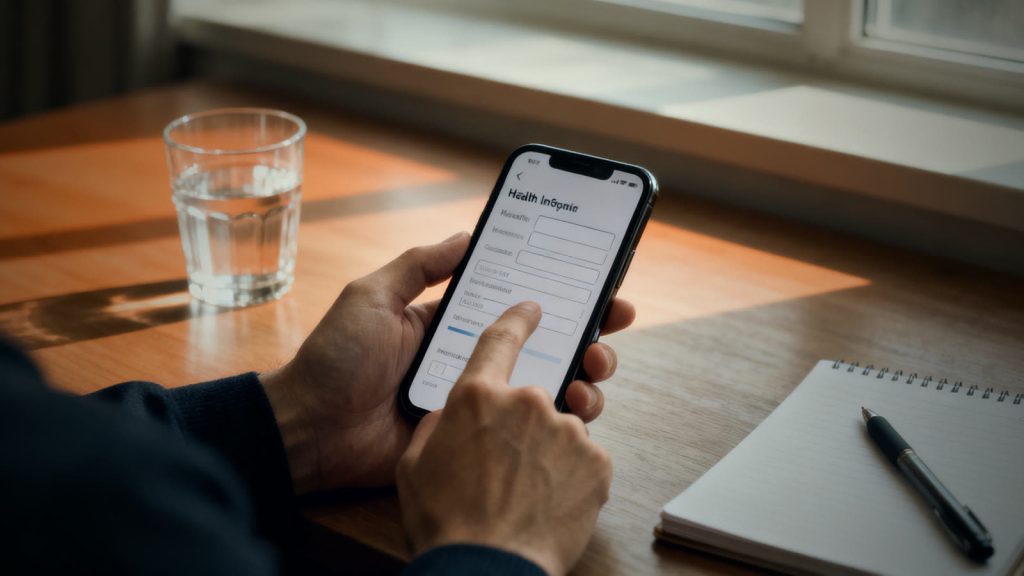
If you use an Apple device, you don’t need an extra app from the App Store to store your medical information on your iPhone. This feature is built right into the preinstalled Health app under the name “Medical ID,” where you can set it up in just a few steps or update it anytime.
Step-by-Step Guide for the Apple Health App
Take a few quiet minutes to set it up so that all medical terms and phone numbers are entered accurately. Follow these steps on your iPhone:
- Open the preinstalled Health app on your iPhone and tap your profile picture in the top right corner.
- In the overview, select Medical ID.
- Tap Get Started if you are filling out the form for the first time, or tap Edit in the top right corner if you want to add to existing entries.
- Now enter your relevant medical information in the corresponding fields: medical conditions and diagnoses, allergies and intolerances, medications, blood type, height, and weight.
- In the Emergency Contacts section, add key people from your contacts and specify their relationship to you.
- Scroll all the way to the bottom and make sure to enable Show When Locked. Finally, confirm your entries by tapping Done in the top right corner.
Only by enabling “Show When Locked” can you ensure that first responders are able to view your Medical ID in an emergency, even when your iPhone is locked and neither your passcode nor Face ID or Touch ID is available.
How First Responders Access Your Information on iPhone and Apple Watch
It is worth knowing not only how to set this up on your own device, but also how to access it—after all, you could find yourself in a situation at any time where you need to help someone else as a first responder. To open Medical ID on a locked iPhone, swipe up on the Lock Screen or press the Home button on older models. On the Passcode screen that appears, tap “Emergency” (or “Emergency Call”) in the bottom left corner, and then select the “Medical ID” button at the bottom.
If you also use an Apple Watch paired with your iPhone, your stored information is available right on your wrist as well. To access it on an Apple Watch, press and hold the side button until the sliders appear on the display, then drag the “Medical ID” slider to the right. Especially during sports or while on the go when your phone is tucked away in a backpack, this quick access on your wrist is a practical advantage.
Adding Medical Information on Android
On an Android smartphone as well, the ability to make vital health information and contacts accessible from the lock screen is a standard built-in feature of the operating system. Depending on the manufacturer, device generation, or language settings, you may see this section labeled “Emergency information” or “Medical information” in the menus.
Managing Entries and Contacts in System Settings
On Android devices, health details and emergency contacts are managed directly in the system settings. You can find this area under “Safety & emergency” or alternatively through the “Personal Safety” app. Within this menu, the setup is clearly organized into two main sections:
- Medical information: In this section, you can store personal and health details such as your name, blood type, known allergies, regular medications, and preexisting medical conditions.
- Emergency contacts: Here you select people from your contacts list whom first responders or emergency services can call directly from the lock screen without having to unlock the device.
When entering your details on an Android device, be sure to explicitly enable lock screen visibility for your saved information. Only when this setting is turned on will your data appear in the emergency menu of the locked screen.
How Responders Access the Information on the Lock Screen
Accessing these details in an emergency is just as straightforward on Android as it is on an iPhone. First responders pick up the locked smartphone, swipe up on the lock screen, and tap the “Emergency” button. They then select “View emergency info,” which displays both your stored medical information and your saved contacts on the screen.
Electronic Health Card, Privacy, and Regular Maintenance
As convenient as quick access via your mobile phone is, an electronic device can run out of battery in an emergency, get damaged in an accident, or simply not be within reach. With thoughtful emergency preparedness, you don’t rely on a single channel—instead, you combine digital options with other reliable records.
The Electronic Emergency Data Record (NFD) on Your Health Card
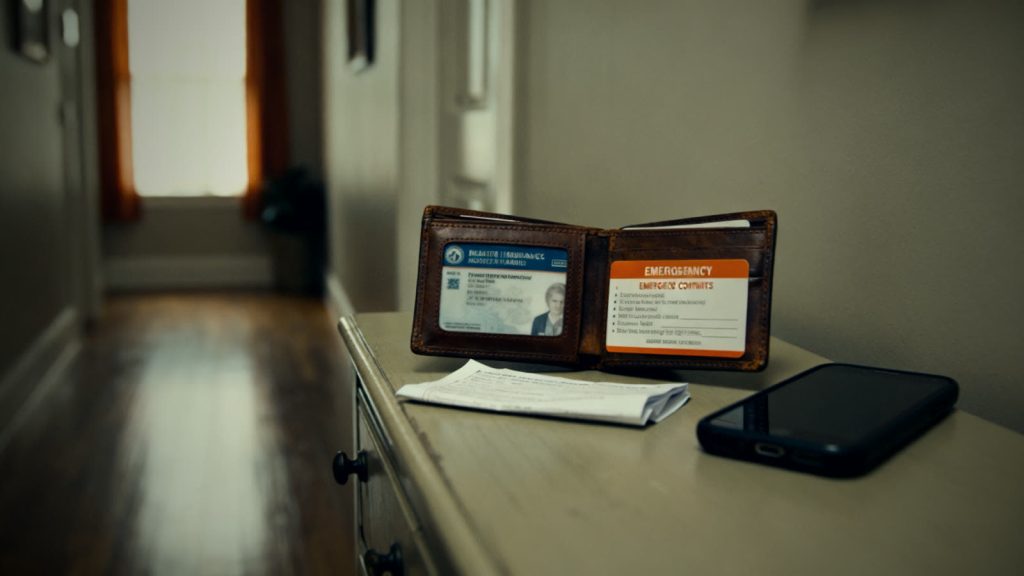
An official supplement to your mobile phone is the electronic health card (eGK, Germany’s health insurance card). With the card’s electronic emergency data record (NFD), medically relevant information can be stored directly on the chip. This includes diagnoses and pre-existing conditions, regular medications, allergies and intolerances, as well as other medical notes—such as implants or an existing pregnancy.
In addition, this record on the card provides space for organizational details that help in an emergency. You can store contact information for family members or trusted individuals to be notified, as well as for your treating physicians. You can also save notes on where to find an advance healthcare directive, a power of attorney, or an organ donor declaration, which are best kept ready at hand at home in your important document folder.
Setting up this emergency data on the electronic health card is voluntary in Germany. The key advantage for both privacy and medical practice: in an acute medical emergency, doctors and paramedics can read the entries without the cardholder entering a PIN—however, they need their electronic health professional ID card (eHBA) to do so. Unauthorized third parties therefore have no access to the card’s chip.
Lock Screen Privacy and Regular Updates
Access on a mobile phone works differently than on a health insurance card. As Google Android Help explicitly points out, anyone who picks up your smartphone can view the information enabled for the lock screen without unlocking the device. If you lose your phone or leave it unattended briefly, anyone who finds it can read these details.
You should therefore make a conscious decision about what data you store on your lock screen. Limit yourself to the exact medical facts—such as vital medications, severe allergies, relevant pre-existing conditions, and a reliable emergency contact—that are essential for your safe initial care in an emergency. You do not need to enter sensitive details that play no role in acute treatment.
Just as important as setting up your details for the first time is keeping them up to date. Stiftung Warentest (Germany’s independent consumer testing organization) points out that stored emergency data should be reviewed and updated regularly. This is especially true if your medication changes, new medical findings are added to your health status, or the phone numbers of your saved contacts change. Outdated medication details or disconnected phone numbers cost valuable time in an emergency.
Frequently Asked Questions
Can first responders open the Medical ID on a smartphone without a PIN or Face ID?
Yes, as long as you have enabled lock screen access. On both iPhones and Android devices, first responders and emergency medical personnel can access your stored health information and contacts via the “Emergency” or “Emergency call” button on the locked screen without an unlock code. All other apps, messages, and photos on your device remain protected by your screen lock.
Who can view my shared information on the lock screen?
In principle, anyone who physically picks up your phone can view the information enabled for the lock screen without unlocking it. That is why you should carefully weigh which details you save there and focus on information that is genuinely relevant to first responders and paramedics in an acute medical situation.
What is the difference between the info on my phone and the record on the health card?
You fill out the feature on your mobile phone yourself, and any first responder can view it immediately on the lock screen without additional card readers. The electronic emergency data record (NFD) on the electronic health card (eGK) is set up voluntarily and, in an acute emergency, can only be read by doctors and paramedics using their electronic health professional ID card (eHBA) without the cardholder entering a PIN.
How often should I review my stored health data?
According to Stiftung Warentest, stored emergency data should be reviewed and updated regularly. This is especially important if your medication, your health status, or the phone numbers of your saved contacts change, so that responders always have reliable information in an emergency.
Your next step: Put your emergency preparedness in place today
Setting up a Medical ID on your smartphone doesn’t cost a cent and takes only a few minutes, yet it can make all the difference in a medical emergency. Don’t put off this simple precaution—take a structured approach and set it up now:
- Gather your information: Write down your current diagnoses, known allergies and intolerances, and your exact regular medications.
- Fill out the form: On an iPhone, open the Health app (profile picture → Medical ID) or, on Android, go to Settings under “Safety & emergency,” and enter your medical information along with at least one emergency contact.
- Enable lock screen access: On an iPhone, turn on “Show When Locked,” or on Android, allow your emergency information to appear on the lock screen.
- Test access yourself: Lock your device and tap “Emergency” on the lock screen to verify that your entries appear complete and easy to read.
- Involve your loved ones: Let your listed emergency contacts know, and ask at your next doctor’s appointment whether adding an electronic record to your health insurance card also makes sense for you.
Sources and further information
- Emergency data – Bundesgesundheitsministerium (Germany’s Federal Ministry of Health)
- Emergency data saves lives – Bundesärztekammer (German Medical Association)
- Health data on your smartphone: Easily accessible in an emergency – Stiftung Warentest (Germany’s independent consumer testing organization)
- Set up and view your Medical ID in the Health app – Apple Support
- Get help during an emergency with your Android phone – Google Android Help
General information, no substitute for individual advice from authorities, emergency services or medical professionals. In an emergency in Europe: 112.